I saw Jordan Lyall’s OpenClaw hardening thread and realized if there’s so much to hardened my servers, then why not do the same for my laptop?
Turns out macOS has a built in firewall with a UI. Here’s the quick setup I use.
Recommended baseline (dev friendly)
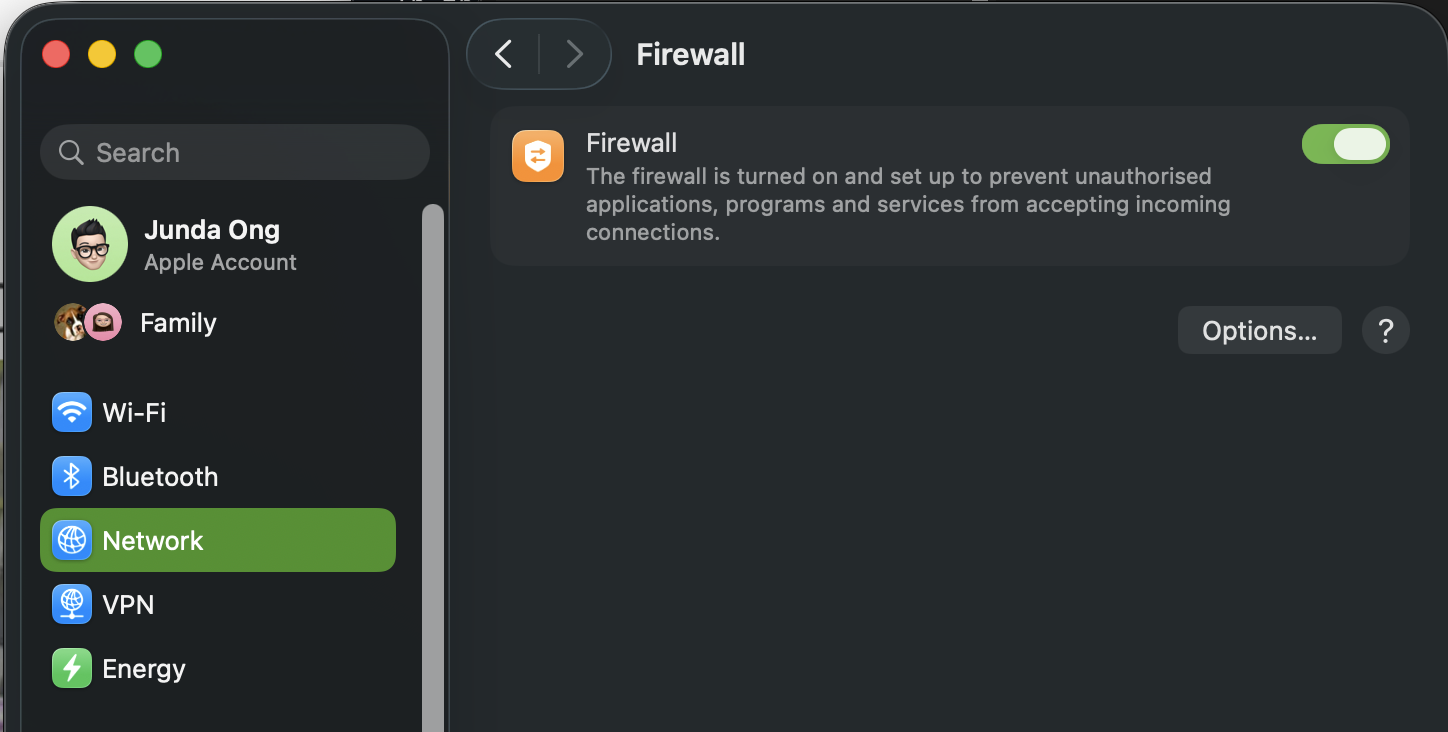
Go to System Settings → Network → Firewall and flip the main switch to ON:
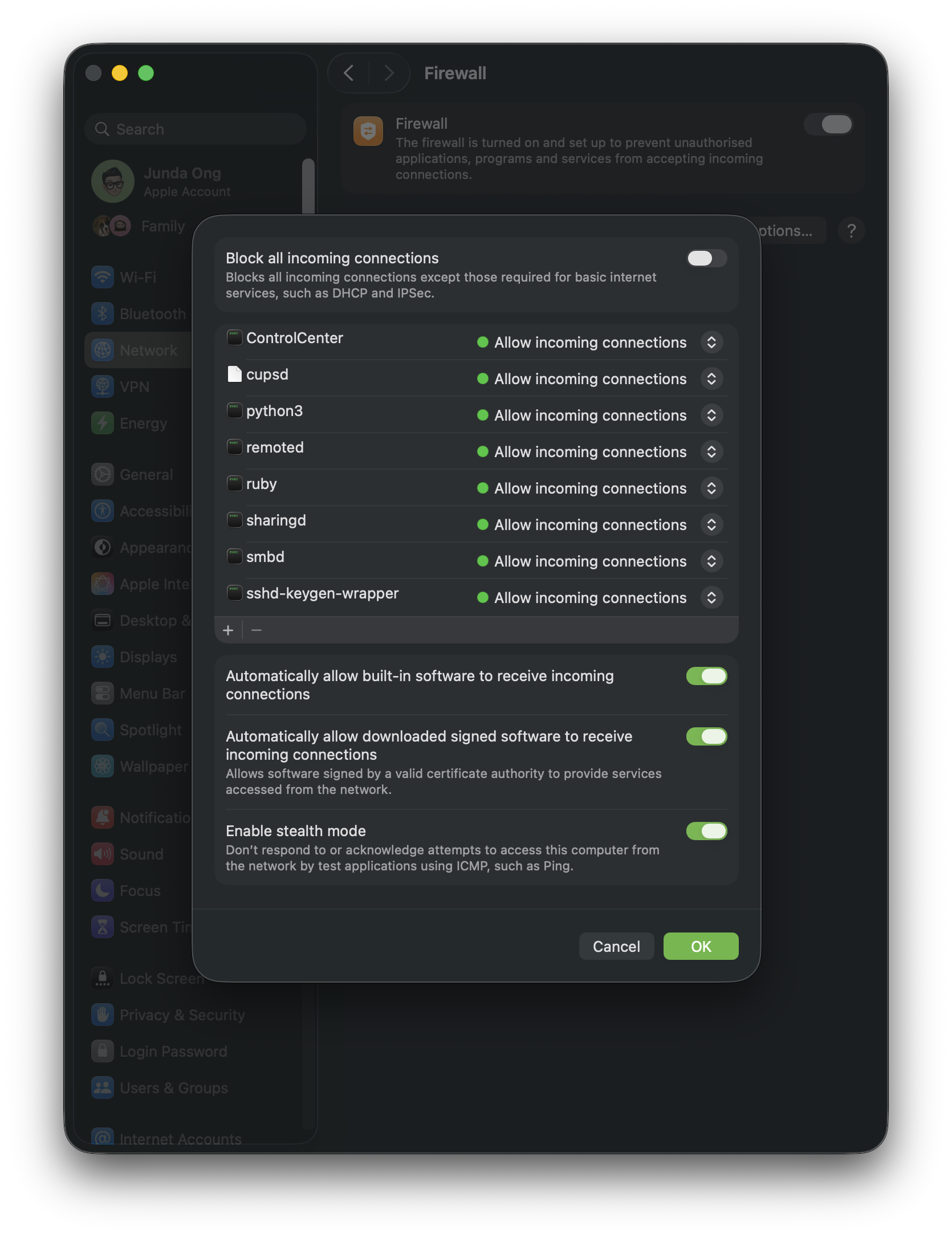
Then click Options and use this baseline:
- Enable Stealth Mode: ON (Apple’s doc: Stealth Mode)
- Automatically allow built in software: ON (keeps the built in stuff quiet)
- Automatically allow downloaded signed software: OFF (I want a prompt when a new app asks for inbound)
- Block all incoming connections: OFF
That last one is your travel or lockdown switch. Turn it on when you want to be boring on hotel Wi‑Fi, but don’t leave it on if you rely on inbound connections (local servers, remote tools, etc).
CLI equivalents (same knobs as the UI)
# Firewall ON
sudo /usr/libexec/ApplicationFirewall/socketfilterfw --setglobalstate on

# Stealth ON
sudo /usr/libexec/ApplicationFirewall/socketfilterfw --setstealthmode on

# UI: “Block all incoming connections”
sudo /usr/libexec/ApplicationFirewall/socketfilterfw --setblockall on   # or off

# Don’t auto-allow downloaded signed apps to accept inbound
sudo /usr/libexec/ApplicationFirewall/socketfilterfw --setallowsignedapp off
These are socketfilterfw knobs. If you want the full list of flags, the socketfilterfw man page is still the most direct reference.
Jordan also has a handy gist you can copy paste from: macOS Firewall Hardening.
Why third party “firewalls” still exist
macOS’s built in firewall is mostly inbound control. Most of the paid stuff is about outbound visibility and control (which app is calling home), which the built in firewall does not really cover.
If you want outbound control, two common options are LuLu and Little Snitch. If you install one, don’t stack multiple network filtering products. You’ll just make debugging “why is my network broken” more exciting than it needs to be.